Skip to content

Create Share Export Policies

Last updated on

To create a Share Export Policy, go to “File Storage > Share Export Policies” and click on “Create Share Export Policy”.
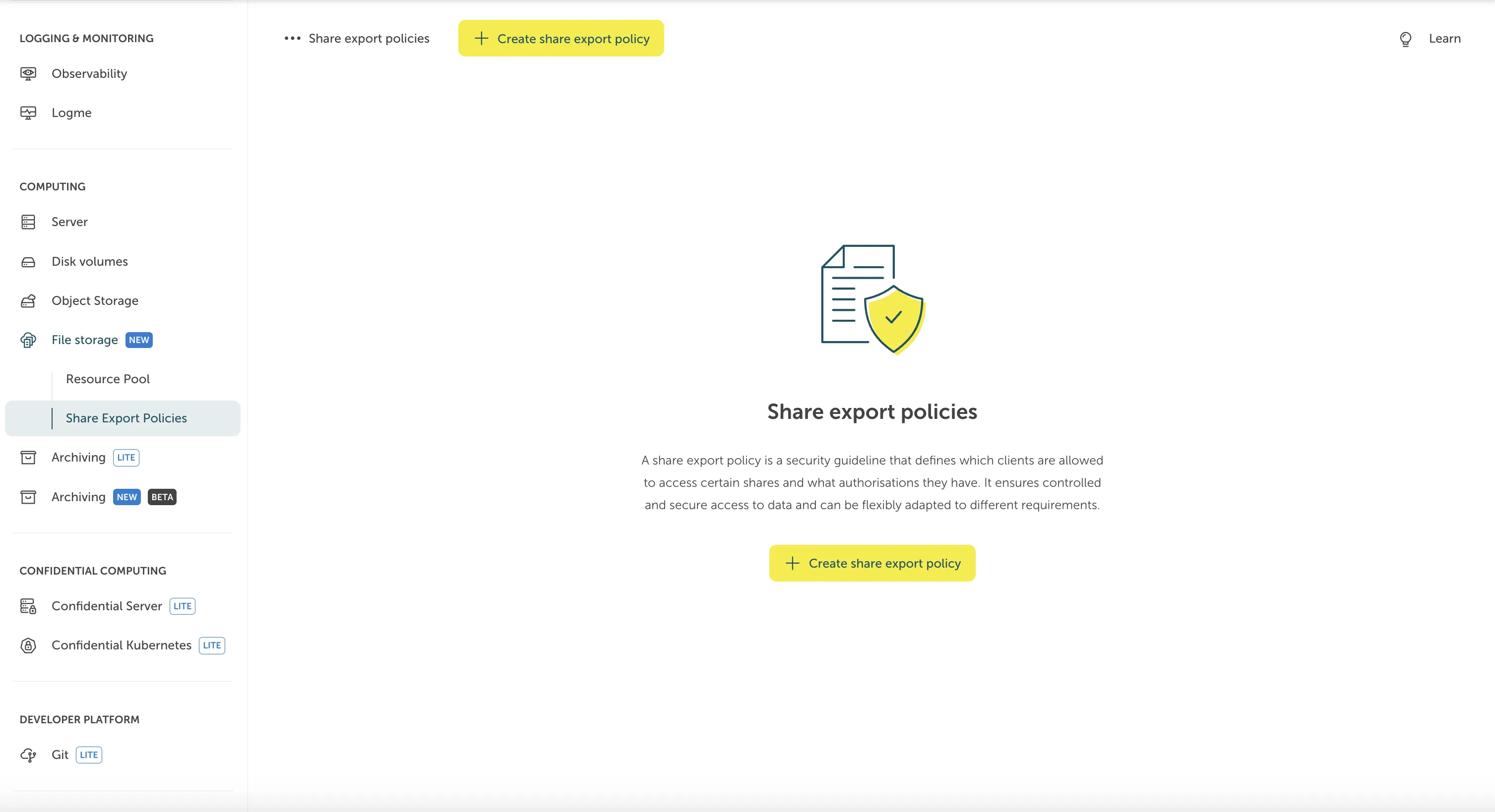
Screenshot of the initial empty "Share export policies" landing page in the STACKIT Portal. The left-hand navigation column highlights "Share Export Policies" under the "File storage" category. The main panel features a central security graphic of a document and a shield with a checkmark, followed by an explanatory text about access rules for shares. Two yellow "Create share export policy" buttons are visible—one at the very top and one underneath the description.

You will be prompted to a form where you can fill in the details for the Share Export Policy. After doing so, you can click “Order fee-based” to finish the process.
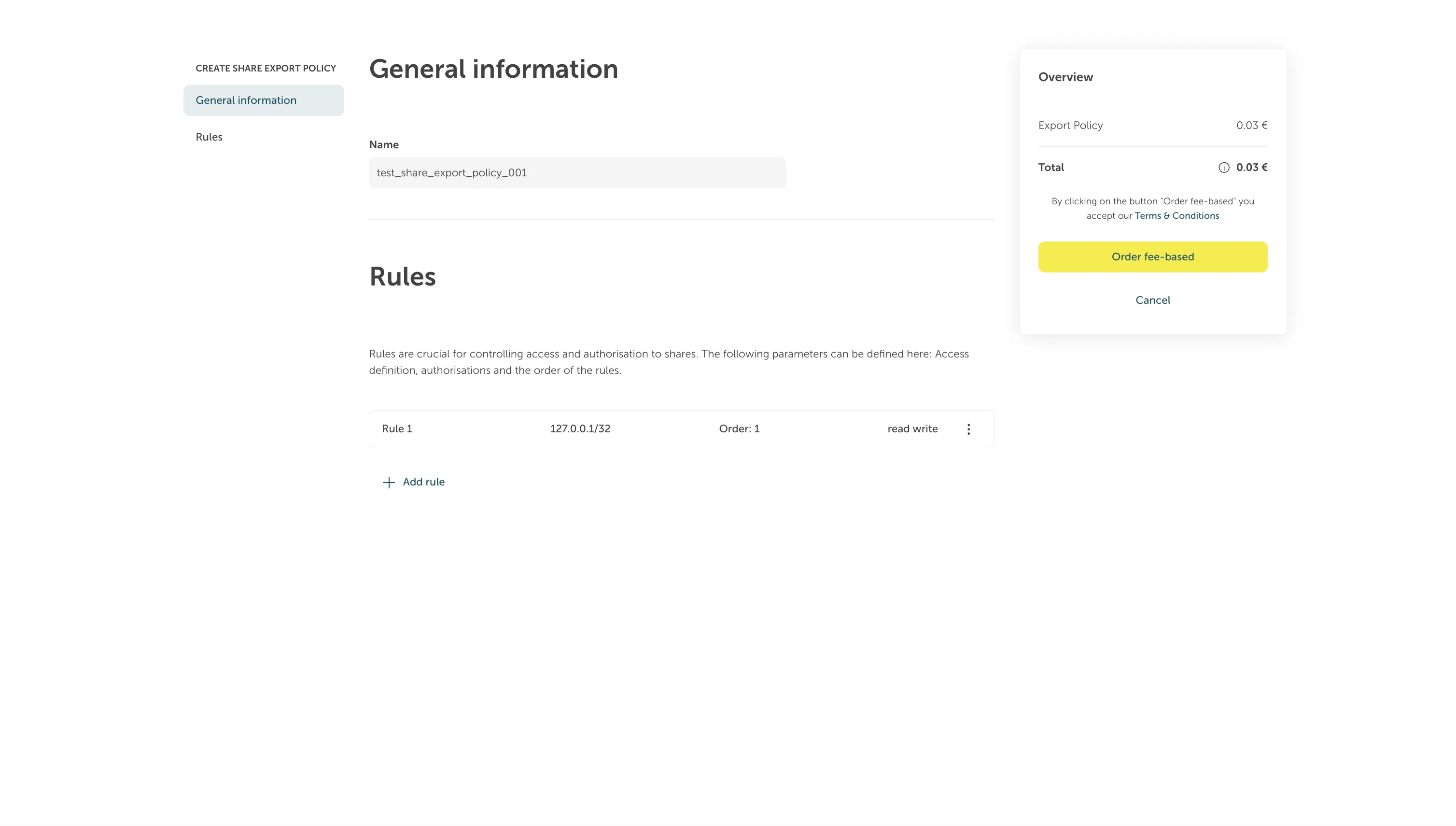
Screenshot of the "CREATE SHARE EXPORT POLICY" creation form in the STACKIT Portal. The page features a "General information" field populated with the name "test_share_export_policy_001". Below it, the "Rules" section displays an explanatory text and lists "Rule 1" configured with the IP address, Order, and "read write" authorizations. On the right side, an "Overview" card lists a total cost of 0.03 € along with a yellow "Order fee-based" action button.

Afterwards, you will see the newly created Share Export Policy listed.
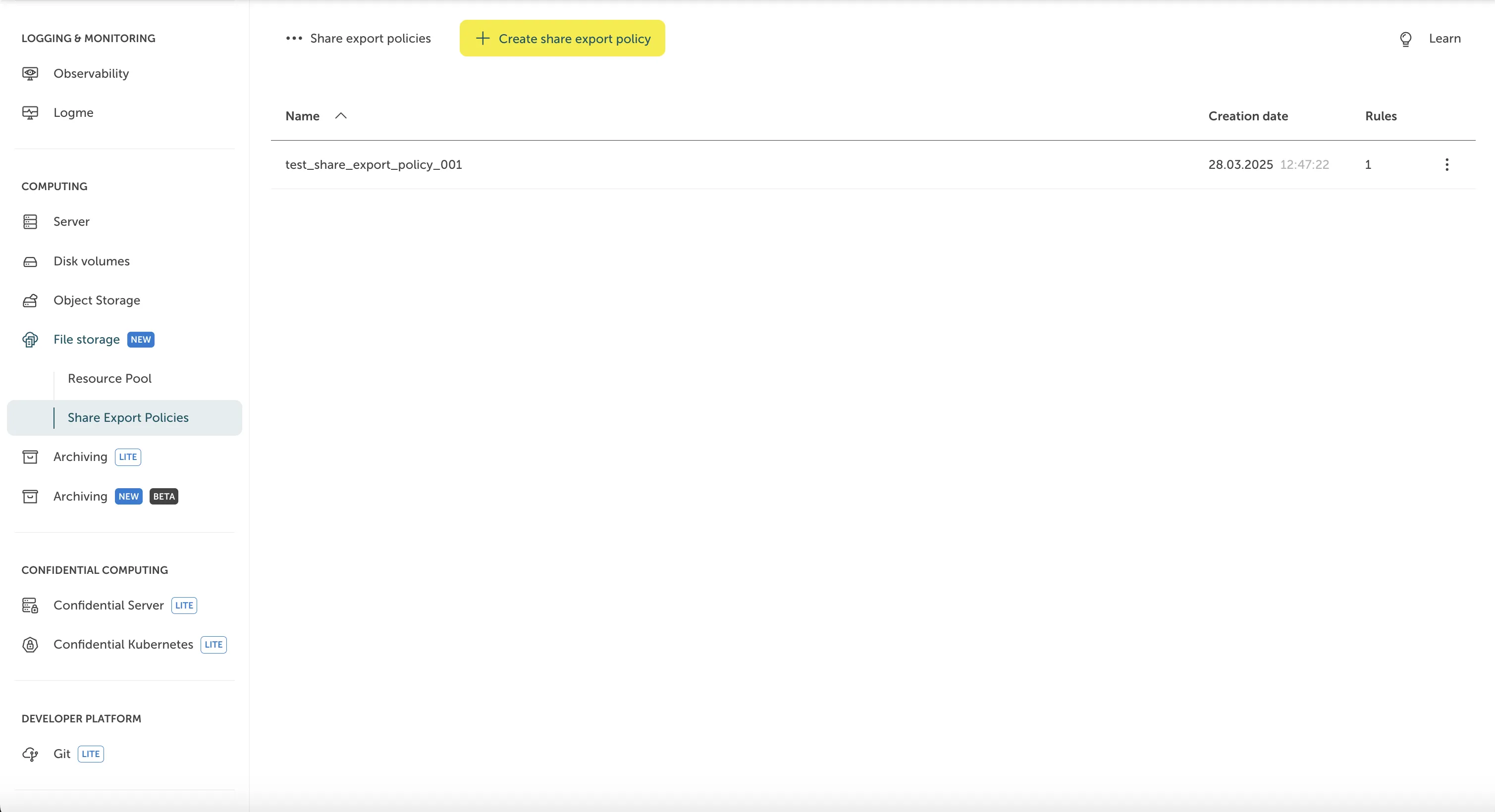
Screenshot of the "Share export policies" overview page in the STACKIT Portal showing a populated list. The left navigation panel has "Share Export Policies" selected under the "File storage" section. The main content area features a yellow "Create share export policy" button at the top and a data table displaying the newly created policy, with a creation date, showing that it contains "1" rule.