Skip to content

Update Snapshot Schedules

Last updated on

To update a Snapshot Schedule, go to “File Storage > Resource Pools” and choose a Resource Pool on which you want to update the snapshot schedule. In our case test we will use “test”.
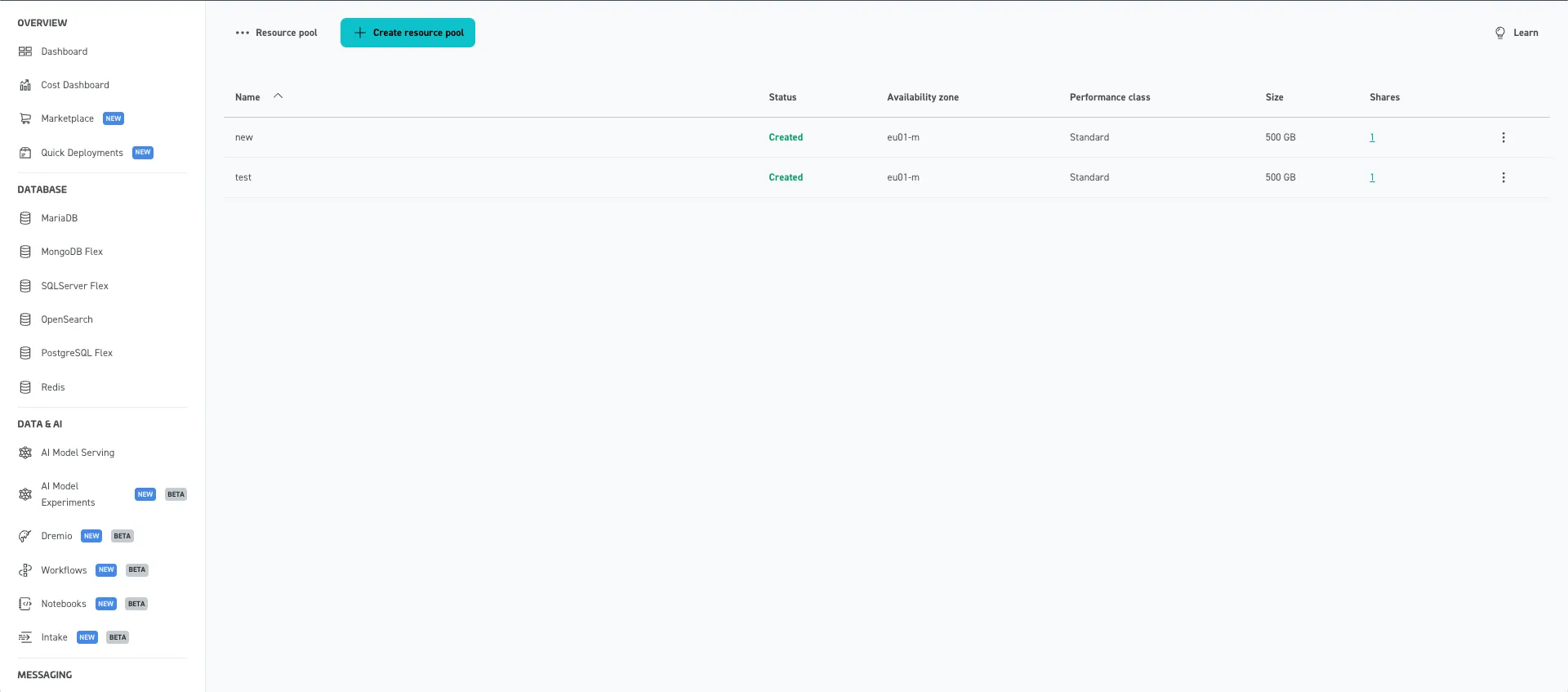
Screenshot of the STACKIT Portal interface showing the "Resource pool" overview under the "File Storage" service. The left navigation panel displays structural categories like Database, Data & AI, and Messaging. The main panel features a blue "+ Create resource pool" button and a table listing active resource pools.

You will be forwarded to a page where information about the selected Resource Pool is presented. This information includes the Snapshot settings, as displayed in the right hand side panel. To update the Snapshot Schedule, click on the “Edit” button.
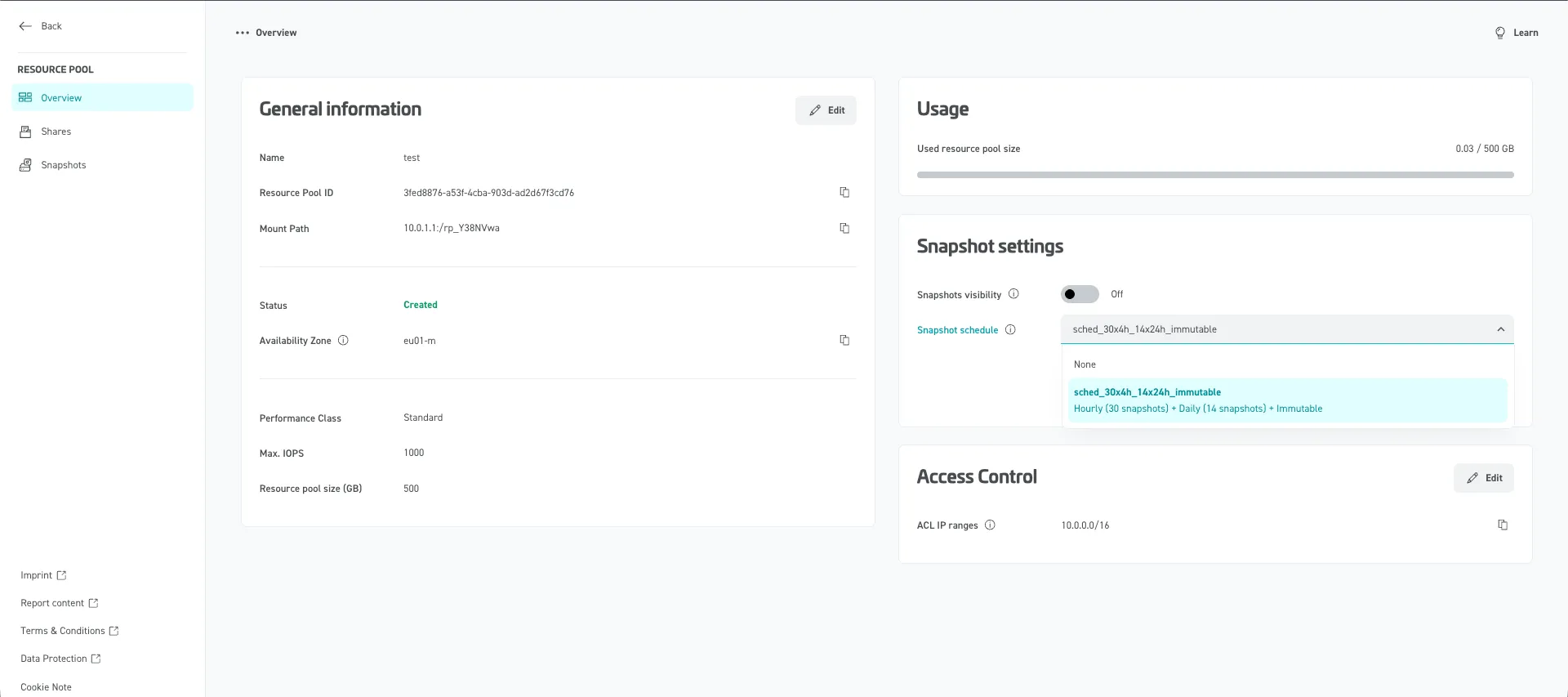
Screenshot of the detailed "Overview" page for a specific resource pool named "test" in the STACKIT Portal. The left column displays "General information" card details such as Resource Pool ID, Mount Path, Status, and Performance Class. On the right, cards for "Usage", "Snapshot settings", and "Access Control" are visible.

You now have the option to update the Snapshot Schedule (in our case sched_30x4h_14x24h_immutable). Select the desired Snapshot Schedule from the dropdown menu and click on the “Save” button to persist the changes.

To be able to select immutable Snapshot Schedules, you need to click on “Enable Immutability” under “File Storage > Resource Pools” and confirm with “Enable Immutability” in the pop-up window.
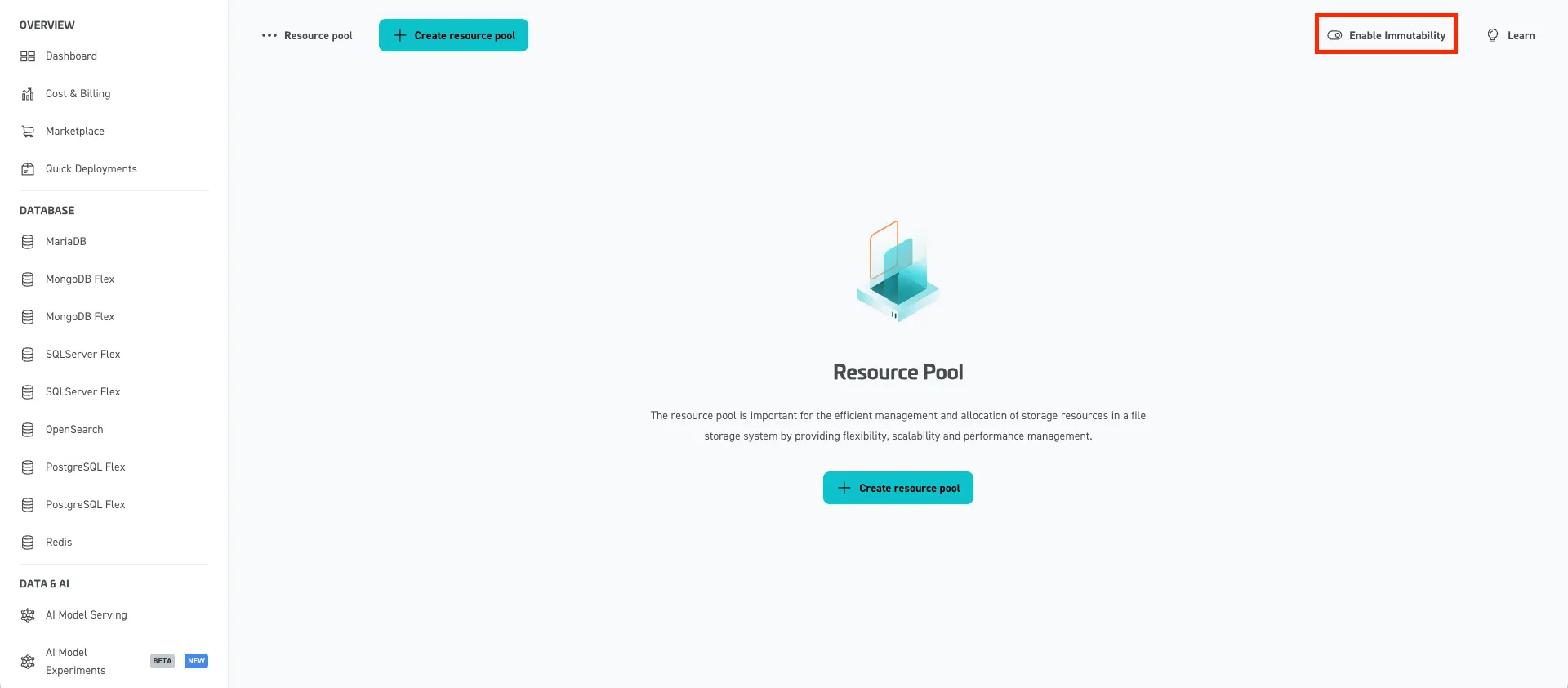
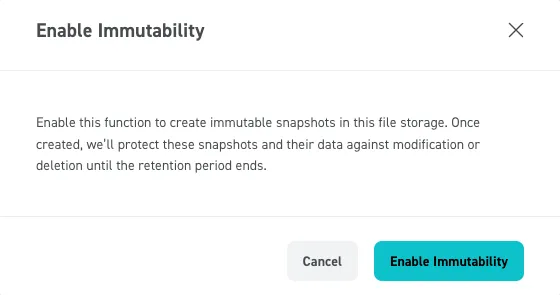
Screenshot of the empty "Resource pool" landing page in the STACKIT Portal. The central area contains an explanatory text about resource pools and a blue "+ Create resource pool" button. In the upper right corner, a toggle switch labeled "Enable Immutability" is highlighted inside a red box. Screenshot of the "Enable Immutability" confirmation pop-up window in the STACKIT Portal. The modal dialog contains an explanatory text stating that enabling the function will protect snapshots and their data against modification or deletion until the retention period ends. At the bottom right, a "Cancel" button and an "Enable Immutability" action button are displayed.